Previous Document Next Document Show Current Location in Contents

Choosing Your Export Format

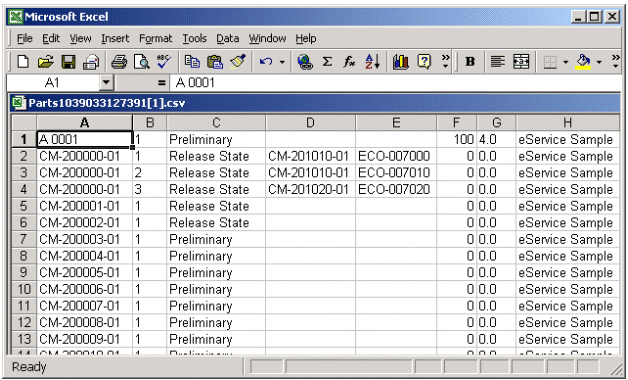
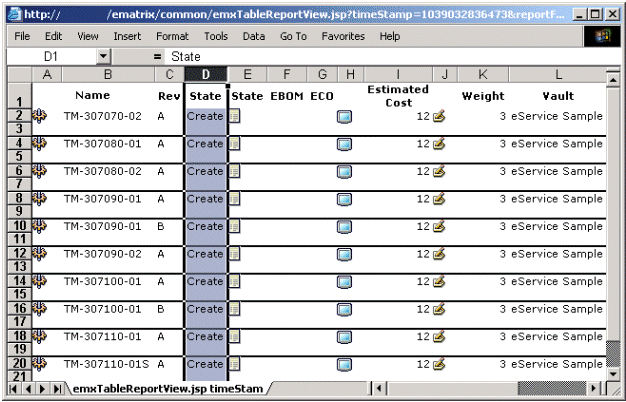
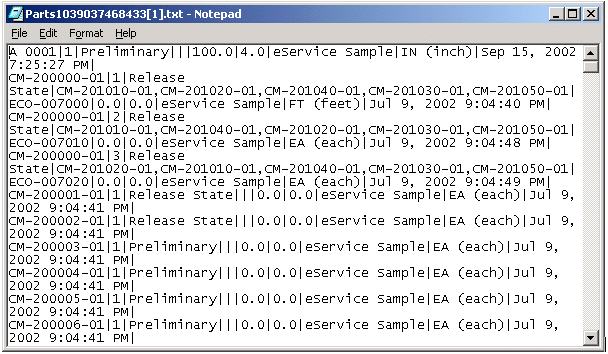
Many table pages include an Export tool so you can export the table data to a file. Use the Export Table Data Format option in Preferences to choose the file format that you want to use whenever you use the Export tool. You can choose CSV, HTML, or Text. The graphics below shows samples of a parts table exported using each format.

CSV format:


HTML format:


Text format with | as field separator and comma as the multi-value separator. Record separator is new line.


To choose the format for exporting table data

  1. Click Tools>Preferences from the global toolbar.
  2. From the General category of the Preferences page, click Export Table Data Format.
  3. The page for choosing your export format appears.

  4. Based on the following table, choose the format you want.

    Format
    Export Description
    Field Separator
    Record Separator
    Remove Carriage Returns
    Other Information
    CSV
    Gives you the option to save the table data to a flat file in CSV format or open it in Excel.
    Export does not include columns with icons.
    comma (,)
    Ignores the Field Separator selection in preferences.
    new line (\n)
    Ignores the Record Separator selection in preferences.
    Column values are always placed within quotes, which makes the values displayed in same cell in Excel, even if it contains carriage returns.
    Ignores preference setting.
    If the data is saved directly to a file without opening it in Excel, the values are wrapped with double quotes ("..."). If there are leading zeros in an all numeric column value, it is wrapped as ="nnnn", where nnnn is the actual value. For example, if the value is 0001124, the value is printed as = "0001124". This special wrapping of values is required to preserve the formatting when opened in Excel.
    HTML
    Opens table data in a new browser window as an Excel file.
    While displaying the Excel file, the images and styles are maintained but hyperlinks are inactive.
    Ignores the Field Separator selection in preferences.
    Ignores the Record Separator selection in preferences.
    Ignores preference setting.
    HTML report format is not supported in the Netscape browser due to a browser limitation. If you choose HTML and then attempt to export using Netscape, the system uses the CSV format.
    Text
    Gives you the option to save the table data in a flat file with delimiters defined in preferences, or open it in the default text editor.
    Export does not include columns with icons.
    Uses the Field Separator preference setting for separating the column values. By default, the Field Separator is a comma. If there are multiple values within a single cell, these values are separated by a comma (,). If you define the Field Separator as a comma (,), the multiple value separator is |.
    The Record Separator preference setting is used to separate the table data rows. It is a carriage return with a new line (\r\n) by default.
    Remove Carriage Returns preference setting is used. If the preference is set to Yes (the default), all carriage returns are replaced with a blank space.
    --
  5. If you chose Text format, choose the remaining preferences. These preferences are ignored for the CSV and HTML formats.
  6. Field Separator--The character used to separate column data for each item.

    Record Separator--The character used to separate information for each item or row.

    Remove Carriage Return--To replace carriage returns with a space, choose Yes.

  7. Click Apply or Done to save your selection. Clicking Apply leaves the Preferences popup open so you can set other preferences. Clicking Done closes it.
Previous Document Next Document Show Current Location in Contents

Last updated: 04/22/04 17:04:25