|
|
|
|
Viewing an Object's Lifecycle
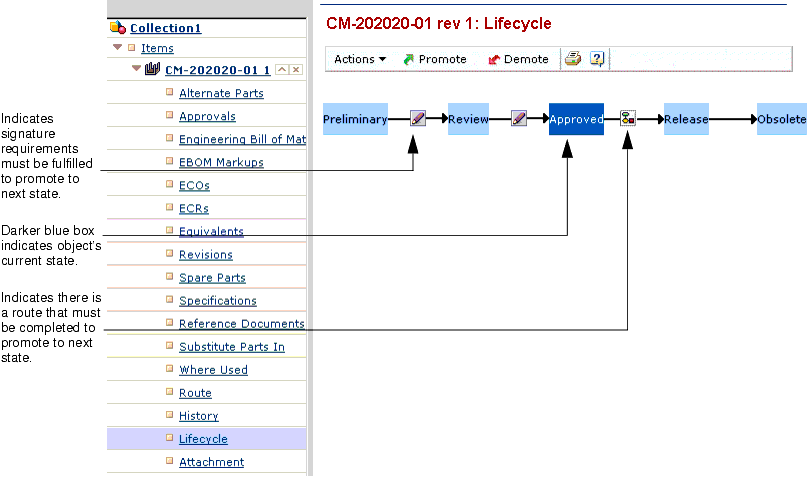
You can often see the current state for an object from a summary page that lists the object or from the object's Properties page. For more information about an object's lifecycle, you need to look at the Lifecycle page, which shows:
- All states in the object's lifecycle and the sequence the object passes through the states, including any state branching that can occur
- The current state of the object
- Any signature requirements for promotion from each state and any signature that has been applied for each requirement
- Any routes that could block the promotion from each state, including the route's name, status, and description and a link to view details for the route
To view the lifecycle for an object
- From the category list for the object, click Lifecycle. For example, the following shows the Lifecycle page for a part:
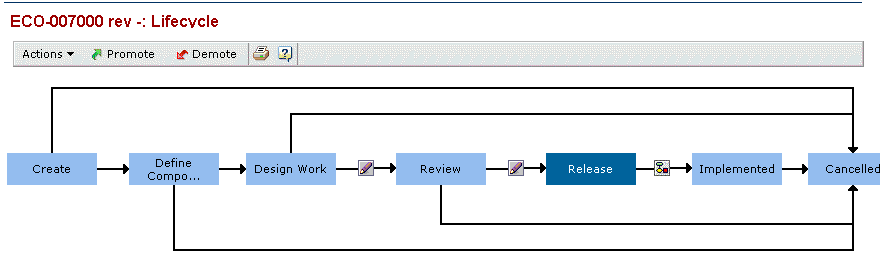
An object's policy can be set up to allow branching from a state. This means when the object is promoted from that state, it could go to the next state in the lifecycle or to another state in the lifecycle. If the policy is set up with branching, the Lifecycle page shows the branches, as with this Lifecycle page for an ECO.
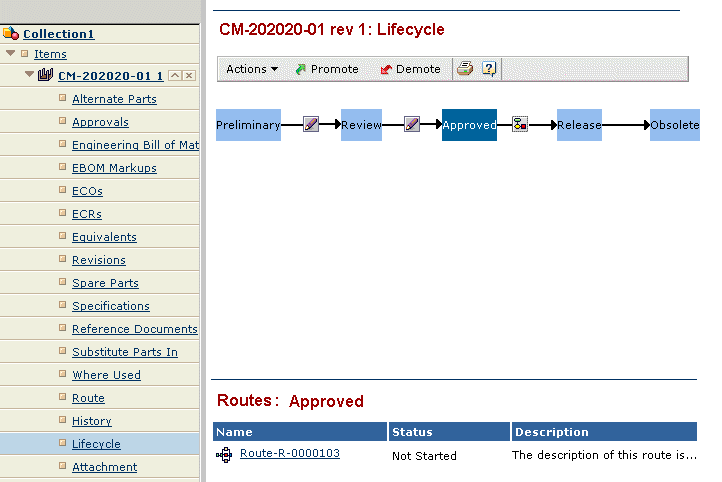
- To see the routes that could block a promotion from a state, click
on the promotion arrow for that state (the arrow pointing to the next state in the lifecycle).
A Routes section appears at the bottom of the Lifecycle page, listing the routes that could block promotion for this state. These are routes that contain the object and for which the route creator has specified the state as a block promotion state. These routes must be completed in order to promote the object to the next state. To see details about the route, click its Name. The route's category list and Properties page open in a new window.
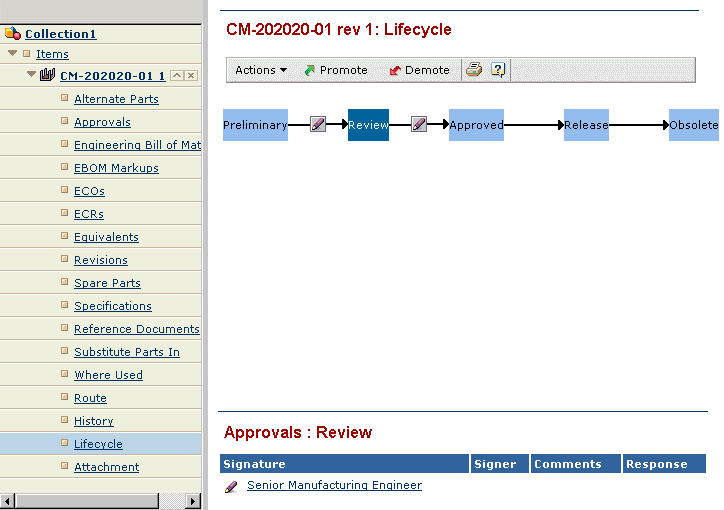
- To view signature requirements and any applied signatures for a state, click
on the promotion arrow for that state (the arrow pointing to the next state in the lifecycle).
An Approvals section appears at the bottom of the Lifecycle page, listing the signatures that are required before the object can be promoted. If someone has applied a signature, the details are listed to the right of the signature name.
- Work with the lifecycle as needed:
- To promote or demote the object, click Promote or Demote from the page toolbar or Actions menu. See Promoting and Demoting an Object.
- To apply a signature, see Applying a Signature. Applying a signature includes approving the object for promotion, rejecting it for promotion, and waiving a signature requirement.
|
|
|
|
| Last updated: 04/22/04 17:05:20 |