|
|
|
|
Common Components Help | AEF Help |
Listing and Editing Tasks for a Route Template
You can list the tasks included in any route template listed on your Route Templates page. Generally, only the current template owner can edit tasks for a template although Team Central Workspace Leads can change any Workspace-level route template for their workspaces. To edit tasks, you must create a new revision of the template.
This section describes how to view and edit all tasks in a route template at once. You can also view and edit information for a single task by clicking the task Name from the Tasks page of the route template. The Properties and editing pages for individual template tasks are different from the corresponding route task pages in the same ways described below.
To list and edit tasks in a route template
- From the global toolbar, click My Desk>Routes>Route Templates.
- From the Route Templates page, click the Name of the template you want to work with.
- From the category list for the template, click Tasks.
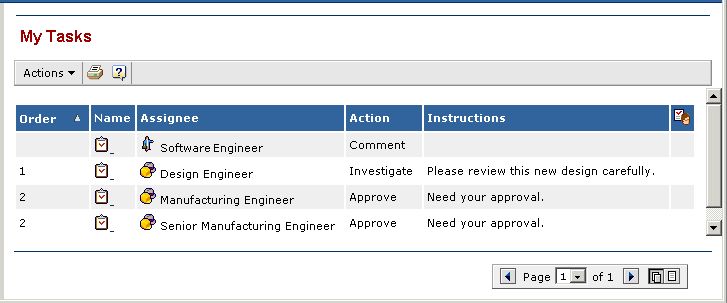
The Tasks page opens, listing all tasks saved with the template.
It contains the following columns:
Order--The order of the task within the route.
Name--The name of the task. If the template was created from a route that included automatically-named tasks, no task names are included.
Assignee--The person, group, or role the route creator assigned to the task. If the task assignees were not saved with the template, the Assignee column is empty. Also, if task assignees were saved with the template but the template owner removed the assignment for a task, the Assignee column for that task is empty.
Action--The action the task assignee should perform: Approve, Comment, Notify Only, or Investigate. If the action is Approve, the assignee must choose an approval status to complete the task: Approve, Reject, or Abstain. All actions except Notify Only require that the route member enter a comment to complete the task.
Instructions--Describes how to perform the task.
- To edit the tasks, click Edit All from the page Actions menu.
A message is displayed: "You can edit a Route Template only by creating a new revision of it." Click OK to create a new revision of the template. The new revision is inactive. You must activate it before anyone can use it to create routes.
- Edit the tasks as you would the tasks for a route (see Defining the Tasks in a Route) with these exceptions:
- There is no option for allowing the task assignee to set the due date so you must specify a date or the number of days after the route start or task creation.
- If task assignees were not saved with the template, you cannot assign route members to tasks. People who use the template to create routes will have to add members and assign tasks before starting the route.
- If task assignees were saved with the template, you can change the assignee to any other person in the access list. You can also unassign the task by choosing the empty row at the top of the tasks's Assignee list.
- Click Done.
|
|
|
|
| Last updated: 04/20/04 14:50:42 |