


|
|
|
|
Common Components Help | AEF Help |
Listing and Adding Attachments for a Discussion
During the course of a discussion, a participant may need to attach a document to support the posted message. Participants can access documents on a discussion as well as messages within a discussion. A file can be uploaded externally or added from a folder, depending on the application in use. Attachments can be added to any discussion or reply.
Clicking the Attachment link in the discussion category list displays a summary of all attachments to the discussion. The owner and all persons that have at least read access to the parent object of the discussion have access to this summary and will see all attachments to the root message as well as all replies. If a document is in a Engineering Central folder, all who have access to the folder also have access to the document. For uploaded external files, all discussion participants have download, checkout, and checkin access to the file.
To list the attachments for a discussion
- Navigate to the category list for the item you want to work with.
For example, to list discussions for a workplace in Team Central, click My Desk > Team > Workspaces and then click a workspace name to select it.
- From the category list for the item, click Discussions.
- From the Discussions page, click the Name of the discussion thread whose attachments you want to view.
- From the category list for the discussion, click Attachments.
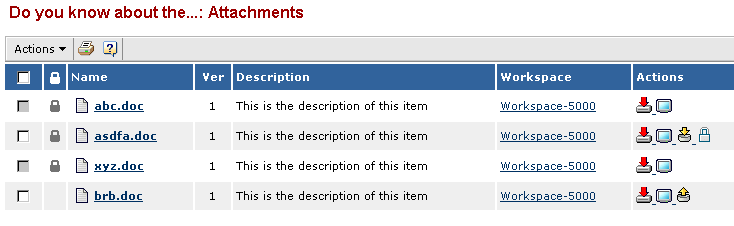
The Attachments page for the discussion opens, listing all files that have been added for the discussion.
For each attachment in the discussion, the page shows the:
Selection check box--The Attachments page contains the standard check boxes in the left column, which let you select items to work on. If you don't have accesses for removing an item, the check box is gray and unavailable for checking. You can still view information about the item but you can't remove it from the discussion.
Locked status--Shows whether the document is locked for edit, as indicated by a Lock
icon. To see who locked the file, move your mouse pointer over the Lock icon. When a file is locked for edit, no one else can lock the file for editing or check in a new version of the file until the person who is editing it unlocks the file manually or by checking in a new version. Even if a file is locked, you can still view it and save it to your computer.
Name--The name of the item. To view more information about an item, click its Name. The icon to the left of the name indicates the type of item. To see the type name, move your mouse pointer over the icon.
Ver--The version number for the document. A version of 1 represents the first time the file was added. Version number 2 means a person checked out the original file for revising and then checked in a new version. Version number 3 means a person checked in a second version and so on.
Description--Details of what the attachment is or what the attached file contains.
Workspace--The name of the workspace that contains the discussion. Click the workspace name to open a new window showing the workspace navigation pane and Properties page.
Actions--The Actions column contains icons that let you work with document content. If a particular icon is not displayed, then the item's status does not allow the action (for example, the Unlock icon is only available for locked files) or you do not have access to perform the action.
- View
--Use to view the file in the program associated with the file's extension, including 2D and 3D viewer programs. To see which program will open if you click the icon for a particular document, move your mouse pointer over the icon. Note that this icon works just like the Checkout icon except it does not lock the file and Checkout can only be used for non-3D documents.
- File Download
--Use to save the file to a local disk. If you plan to make changes to the file and then check in a new version, use the Lock for Edit
icon instead of the Download icon. To view the document in an associated program immediately, without first saving the file to disk, use the View
icon.
- Checkout (Lock for Edit)
--Use to lock the document for editing. When a file is locked, no one else can check in a new version. When you lock a file for editing and the file's extension has an associated program, the application opens the file in that program. If there is no program associated with the file's extension or the file is of a type that can't be opened in a browser, the application lets you save the file to a local disk. You can then open it in the associated program. Once opened in the associated program, you can edit it, resave it, and check it back in.
- Checkin
--Use to check in a new version of the document. This icon is only available if you checked out the document, which locked it for editing (your name should be displayed when you move your mouse pointer over the lock icon in the first column). Checking in a new version automatically unlocks the file, making it available for other people to edit it. Alternatively, you can unlock the file without checking in a new version by clicking the Unlock
icon.
- Unlock
--Use to unlock a file that you checked out and locked for editing. Manually unlock a file using this icon only if you decide not to check in a new version. Checking in a new version automatically unlocks the file.
To add documents that are in a local directory
- From the Attachments page, click Upload External File from the page Actions menu.
Depending on how your system is set up, a File Checkin/Checkout Login page may appear. If so, enter the same Username and Password that you enter when logging into the MatrixOne Application and click Login.
The Upload External File page appears.
- Enter information about the file:
File. Type the full path for the file, or click Browse to select the file. File names cannot include any of these special characters: ; \ / ? < > + = : & @ $ , * |.
Workspace Folder. Type the name of the folder for the file, or click
to select the workspace name.
Description. Type details that explain the contents of the file.
- Click Done.
To add documents from the workspace
- Click Add Files(s) from Workspace from the page Actions menu.
- Enter search criteria. For help entering criteria, see Using Search.
- Click Search.
- From the results page, check the item(s) you want to add.
- Click Select.
When a file is added from a workspace folder, its security remains unchanged, which means all discussion participants may not have access to it.
To remove an attachment from the discussion or reply
The owner of the root message can remove an attachment as well as the reply owner. If the Discussion owner (creator of the root message) decides to delete the thread, all unmanaged documents also get deleted unless they have connections from another business object.
|
|
|
|
| Last updated: 04/20/04 14:51:07 |
 for standard documents
 for 3D JT files