|
|
|
|
Common Components Help | AEF Help |
Choosing by Selecting
This section describes how to use Select pages that let you choose an item or items as part of performing a particular task. For example, when choosing a Buyer Desk for a workspace, the Workspace Lead can choose from a list of Buyer Desks created for their company. This section also describes how to use the Type chooser.
To choose an item or items by selecting
- From the page that lets you specify the item, click the Browse
button for the item.
The Select page opens for the item, listing the items that you can choose. The system may limit the list based on items you have access to. For example, the list of workspace folders only includes folders you have access to. If an item can't be selected, for example, because it is already selected or its state does not allow it to be selected, the check box/button for it is gray and unavailable.
If you can select more than one item, the page shows a check box next to each item, letting you select as many as you want. The following graphic of the Select Folder page contains check boxes.
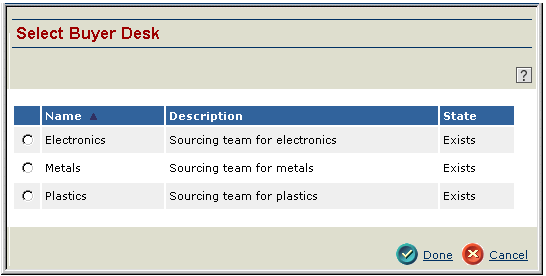
If you can select only one item, the page shows a circular button next to each item. The following graphic of the Select Buyer Desk page contains buttons.
- Choose the item or items you want to select.
If the items are organized in a hierarchy, and most items are, the lower-level items are indented and listed under the higher-level items. If a higher-level item has lower-level items, there is a plus sign next to the item. To expand a higher-level item, click the plus sign next to it. To contract a list, click the minus sign.
- Click Done.
- Click the
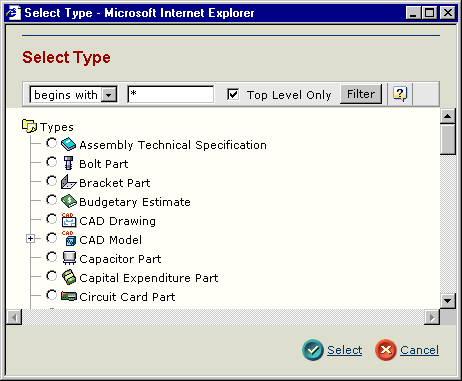
The Select Type page opens for the item, listing the types that you can choose.
Only the types pertinent to the selection you need are shown. For example, if you are selecting a type of specification, the only choices shown are CAD Model, CAD Drawing and Drawing Print.
- You can use the filter bar to customize the types shown.
- Select an operator:
Begins with--The system looks for type names that begin with the text you enter (like including a wildcard * at the end of the text you enter).
Ends with--The system looks for type names that end with the text you enter (like including a wildcard * at the beginning of the text you enter).
Contains--The system looks for type names that include the text you enter (like including a wildcard * before and after the text you enter).
Equals--The system looks for type names that exactly match the text you enter.
- Type the text to search on. This field is case-sensitive.
- Check Top Level Only if you want to see only parent types, or uncheck it to see all type and subtypes that match your filter criteria.
- Click Filter.
For example, to search for all parts, select "Contains" from the drop-down list and type "Part" in the text field. The list will change to show all types that contain the word "Part", for example: Part, Electrical Part, Mechanical Part, Component Part, (etc.).
- A plus sign to the left of a type indicates that there are subtypes of that type. Click the plus sign to expand the type hierarchy. Click the minus sign to collapse the hierarchy.
- Click the check boxes of the types you want to include. If you are allowed to choose only one type, you will see buttons rather than check boxes.
- Click Select.
The Select Type window closes automatically and display returns to the page where you initiated the search. If you selected multiple types, all are included in the text box, separated by commas.
|
|
|
|
| Last updated: 03/30/04 13:47:28 |