|
|
|
|
Adding Items to a Collection
You can search for and select items to add to a new or existing collection. For example, you can search for parts, then select particular parts from the search results to add to a collection. If the collection name you specify does not exist, a new collection is created. If the collection exists, the selected items are added to those already included.
You can also add items to an existing collection from that collections's Items page.
Collections can include any type of object. For example, a collection could be created to group similar parts or to group documents related to a particular project.
- From the global toolbar, click Search.
Enter search criteria to find the objects you want to add to a collection. For details, see Using General Search.
- From the Search Results page, check each item that you want to include in the collection.
- Click Add to Collection from the page toolbar.
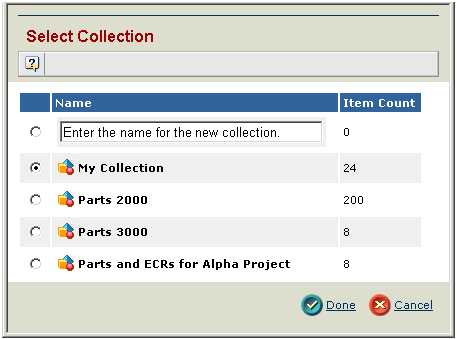
The Select Collection popup appears, showing all collections that you own.
- If you want to add the objects to an existing collection, select that collection.
If you want to create a new collection to add the objects to, type a name. Don't use the same name as one of your existing collections. If you choose a name that matches an existing collection that you own, an error message displays and the Select Collection popup redisplays so you can enter a different name.
- Click Done.
If a selected object already exists in the collection, it is not added again.
To add items to a collection you are viewing
- View the contents of a collection. For details, see Managing a Collection.
- From the Collection Items page Actions menu, click Add Existing.
Enter search criteria to find the objects you want to add to a collection. For details, see Using General Search.
- From the Search Results page, check each item that you want to include in the collection.
- Click Add to Collection from the page toolbar.
|
|
|
|
| Last updated: 04/22/04 17:05:14 |