|
|
|
|
Viewing History
You can view the history of many items in MatrixOne applications, such as the history for parts, documents, routes, and tasks. Anyone who can access the category list and Properties page for an item can view history for the item. You can access the History page for most items by accessing the category list for the item and then clicking the History category. For a few kinds of items, you may have to click a History link on a page to see history for an item. For instructions on how to access history for a particular type of item, see the online help or user guide for the application you are using.
Standard History Page
The History page for most items lists all events that have occurred for the item. If the item can have multiple revisions, then the page shows only the events for the revision you are working with. The earliest history entry for every object is the create action. This tells you when the object was created and who created it. The originator may not be the current owner.
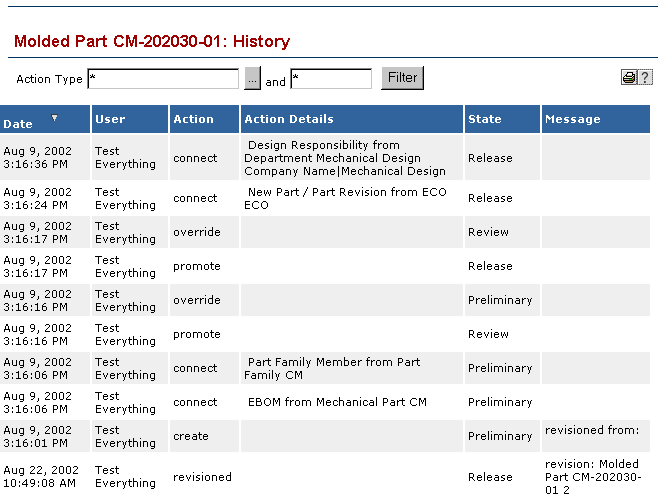
This graphic shows an example of a standard History page for a part.
Date--The date and time of the action.
User--The user name of the person who initiated the action.
Action--The type of activity performed on the item, such as create, modify, connect, and so on.
Action Details--Details about the specific items involved in the action. For example, if the action is change owner, the details list the previous and new owners. If the action is connect, the details list the items that were connected.
State--The state the item was in when the action occurred.
Message--Additional information about the action, if any.
You can filter the list of history events by the action type or by any text in the other columns.
! Some History pages might be designed to prevent filtering of the history events. In this case, the Action Type and/or text filter controls are not available. To filter the list of history events
- To filter the list of history events based on the action type:
- Click the Browse (...) button next to the Action Type box.
The Select Action Types page opens, listing all action types in the history list.
- Check the actions you want to see on the history page. All unchecked action types will be removed from the list.
- Click Done.
The action types you checked are listed in the Action Types box on the History page.
- To filter the list of history events by any text in all columns except Action Types, enter the text to filter on in the box to the left of the Filter button. Make sure you include the wildcard * at the beginning and end of the text.
For example, to filter the list so it shows only events performed by the user "Joe", enter *Joe* in the box and click Filter. To see only the events the took place in July, enter *July* or *Jul* and click Filter.
- After specifying your filter criteria, click Filter.
The History page lists only the events that meet your filter criteria.
All Revisions/Versions History Page
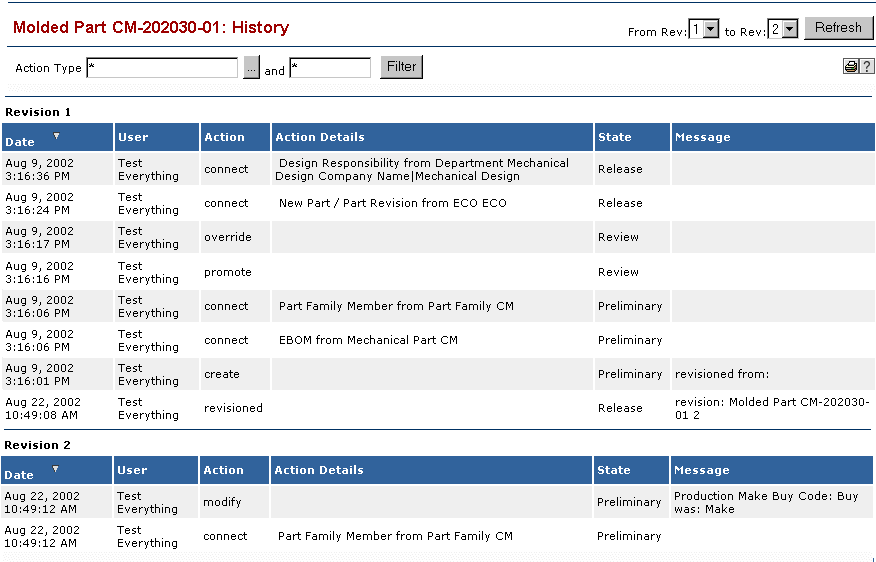
For some types of items, such as documents in Team Central, the History page shows events for all revisions (in some cases referred to as "versions") of the item and the rows of history events are separated by revision (or version). When the History page first opens, only the events for the latest revision are displayed but you can refresh the page and show the revisions you want to see, as described below. The following graphic shows an example of a part History page that includes events for all revisions.
You can filter the All Revisions History page by action type and by text in other columns just as described for the standard History page. Additionally, you can specify the revisions that you want to see history for.
To choose the revision/versions you want to see history for
- Use the From and to lists in the upper right corner of the page to specify the revisions/versions you want to see.
To show events for one revision only, choose that revision number in both the From and to list.
To show events for multiple revisions in ascending order (revision 1 first, then revision 2 and so on), choose the lowest revision number in the From list and the highest in the to list.
To show events for multiple revisions in descending order (revision n first, then revision n-1 and so on), choose the highest revision number in the From list and the lowest in the to list.
- Click Refresh.
|
|
|
|
| Last updated: 04/22/04 17:05:14 |