Selecting Rows in a Table
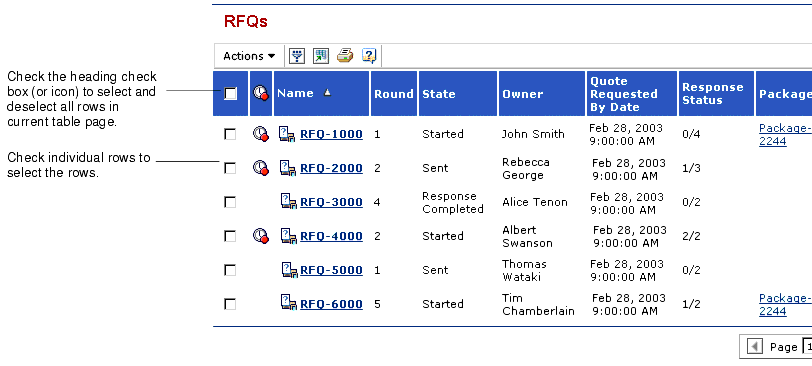
Many tables let you select the row or rows you want to work on. For example, from a table that lists your RFQs, you can select the rows for the RFQs that you want to delete or cancel. If you can select more than one row to work on at once, the table contains a check box next to each row, so you can check all the rows you want to work on. If you can only choose one row at a time, the table contains a button next to each row. You select a row by clicking its button. For almost all tables, the check boxes or button is the first, left-most, column in the table. The following graphic shows a standard table that lets you select multiple rows.
- To select a row in a table, check the check box for the row. If you can only select one row at a time, the table contains buttons instead of check boxes. Click the button for the row.
- To select and deselect all rows in the current table page, check the check box in the column heading. A few tables contain an icon in the heading instead of a check box. You can click the icon to select and deselect all rows. If the table contains buttons instead of check boxes, indicating that you can only select one row at a time, you cannot select and deselect all rows.
|
! |
Some tables do not remember rows that you select across pages within the table. For
example, suppose a table spans 2 pages. You select an item on the first page, move to the
second page and select an item, and then click Delete Selected. The system only deletes
the item selected on the current table page. It does not remember the row that you selected
on the first page. If you want to select items that are listed on different pages within a
table, click  in the lower right corner of the page to remove pagination. (Note that this
does not apply to pages built using the configurable table. The configurable table does
remember selections across pages.)
in the lower right corner of the page to remove pagination. (Note that this
does not apply to pages built using the configurable table. The configurable table does
remember selections across pages.)
|