|
|
|
|
Filtering Table Data
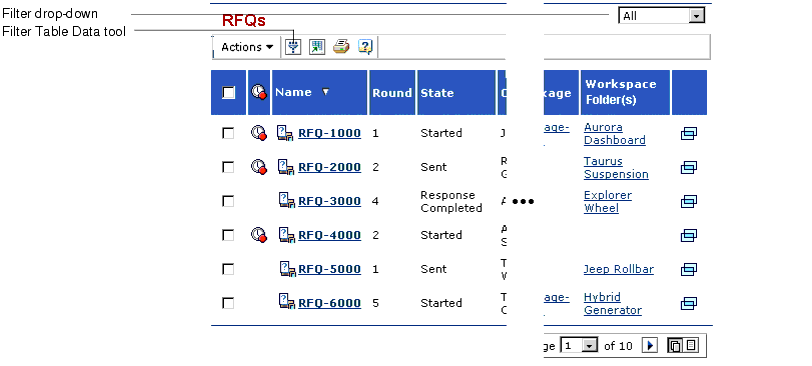
There are two mechanisms for controlling which items are displayed in a table: a filter drop-down list and the
tool. A table page can have one, both, or neither filter mechanism. (Some table pages might also have a custom filtering option. For help with such a custom filter option, click
on that page.)
The filter drop-down contains options for filtering the table rows that typically are not based on the column data. For example, the drop-down on the RFQs table lets you filter RFQs based on whether you own the RFQ, have been routed the RFQ, or are a member of a Team Central workspace that contains the RFQ.
The
If a table page contains both filtering mechanisms (the drop-down list and the
To filter a table using the filter drop-down
- From the table page, choose an option in the filter drop-down list. For information on the filter drop-down for a specific table page, click
The table refreshes to show only the items that meet the filter criteria for the selected option.
- To redisplay all items, choose All from the filter list.
To filter rows in a table using the
- Click
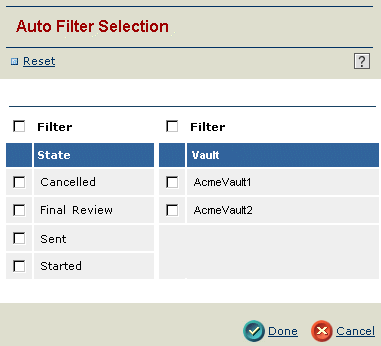
The Auto Filter Selection page opens.
Each column that you can filter on is listed in a blue heading row and has a Filter check box above the heading row. For example, if a table page is designed to let you filter out objects that are in particular states and in specific vaults, the Auto Filter Selection page would contain a State heading and a Vault heading, each with a Filter check box above it.
The unique data that is in each table column is listed under the heading. Only the data that is in the current table is listed, including data from all paginated pages in the table. For example, suppose the first page of the RFQ table contains only RFQs in the Started state and the second page contains only RFQs in the Sent state. When you click
- Check the column data whose rows you want displayed in the table.
For example, if you want to display only RFQs in the Started state, check Started.
When you click at least one column value, the Filter check box for that column is also checked. The Filter check box must be checked for the filter for that column to apply.
If filters are available for more than one column, each row in the table must meet the filter criteria for all the columns to be displayed. For example, suppose you check the Sent filter option under the State heading and the AcmeVault1 filter option under the Vault heading. For an item to display in the table, it must be in the Sent state and in AcmeVault1. An item that meets only one of the filters will not be included in the table.
- Click Done.
The table page refreshes to display only the rows that contain the selected values.
- To remove the filter and redisplay all rows again (the filter is removed automatically when you go to another page and return):
|
|
|
|
| Last updated: 04/22/04 17:04:25 |