|
|
|
|
Viewed Items Insert into Category List
This section describes how items and their category lists are inserted under a Context Navigator category as you view details about the items.
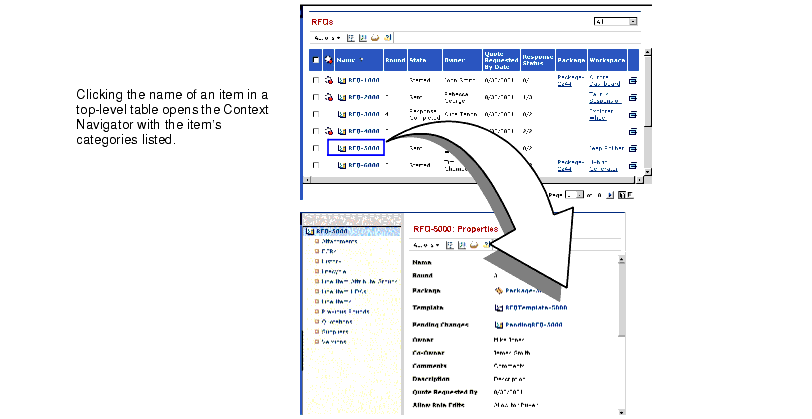
When you first log into a MatrixOne application, you'll typically begin by clicking a link from the My Desk menu. My Desk menu links display table pages that list a particular type of item relevant to your work. When you click the name of an item listed in one of these top-level table pages, the Context Navigator and associated Properties page replace the table page in the main window. The Context Navigator contains the category list for the selected item.
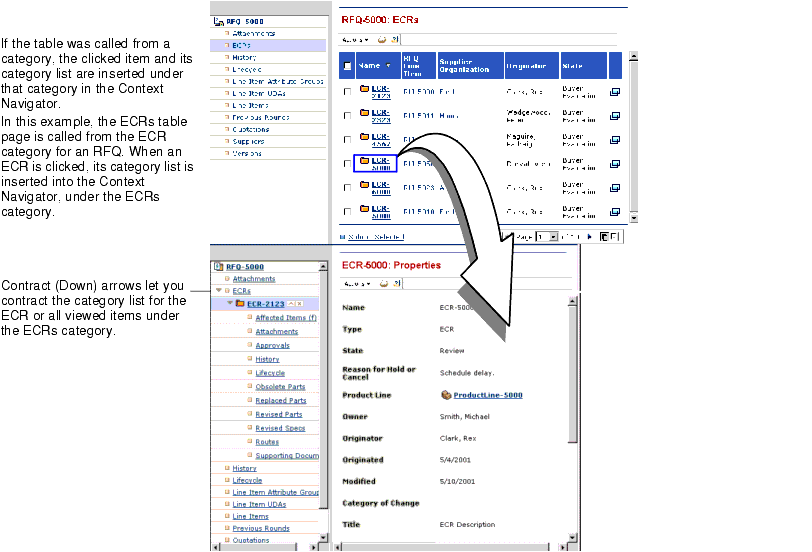
When clicked, most categories display a table of items related to the viewed item (for example, clicking the ECRs category for an RFQ displays all ECRs for the RFQ). Clicking the name of an item in a category table inserts the name of that item and its category list under the category the table was called from. Similarly, clicking the name of an item in a second-level category table inserts the name of that item and its category list under the second-level category and so on.
For example, suppose you click the ECRs category from within the category list for an RFQ. The ECRs table page displays to the right, showing all ECRs for the RFQ. When you click the name of an ECR, the ECR and its categories are inserted into the Context Navigator just under the ECRs category, as shown below. When an item is first added to the Context Navigator, its category list is expanded and its name is selected. The category list for any other items added previously to the Context Navigator are contracted.
When a viewed item and its category list is inserted under a Context Navigator category, a
appears to the left of the category name, allowing you to contract the list of inserted items and their category list. Each inserted item also has an arrow to the left of the name, allowing you to expand and contract its category list.
Note that some categories are set up so all items within it, and their category list, are automatically inserted under the category. You don't have to view details for the items to have them inserted into the Context Navigator. The Folder and Subfolder categories in Team Central and Program Central are configured like this. This means that if a Folder or Subfolder category has at least one folder in it, an arrow appears to the left of it, even if you haven't viewed details for any folders.
Adding items and their category list to the Context Navigator as you view their details helps you keep track of which item the table page relates to. For example, in the above graphic, listing the selected ECR and its category list under the ECRs category helps you remember that the ECR is for RFQ-5000 and not some other RFQ you worked on recently. Additionally, as you view details for other ECRs submitted for the RFQ, the system continues to insert their names and category lists under the RFQ's ECRs category. The inserted items become a quick reference so you can easily go back to details that you previously viewed.
|
|
|
|
| Last updated: 04/22/04 17:04:25 |