|
|
|
|
Context Navigator Displays Category List for Selected Item
The Context Navigator displays related categories of information about selected items. For example, this graphic shows the Context Navigator with the category list that is displayed when a person views details for a part family.
Different types of items have different categories in their category lists. Categories for an item also can vary depending on your access rights to the item. Factors determining access rights typically include the roles you are assigned, whether your company has responsibility for the item, and whether you are assigned ownership. For example, when buyers view details for an RFQ created within their company, they see many categories. When a supplier who receives the RFQ views details for it, the supplier sees only a couple of categories. Most RFQ categories contain information that should be viewed only by the buyer.
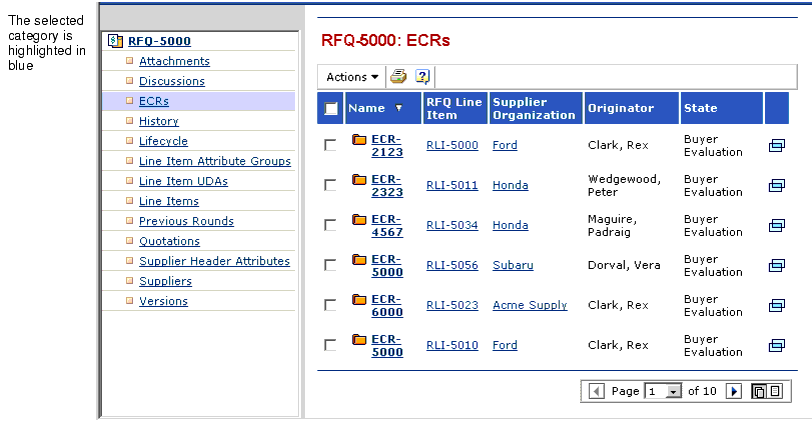
You view an item's information for a category by clicking it. The page for the category appears to the right of the Context Navigator. Most categories display table pages with lists of items in the category for the selected item. You can view details for these table items and continue drilling down to see details for related objects. For example, the ECRs category for an RFQ displays all ECRs submitted for the RFQ. You can view details for ECRs just as you viewed details for the RFQ. A few specialized categories display non-tabular information, such as Properties, Lifecycle, and History.
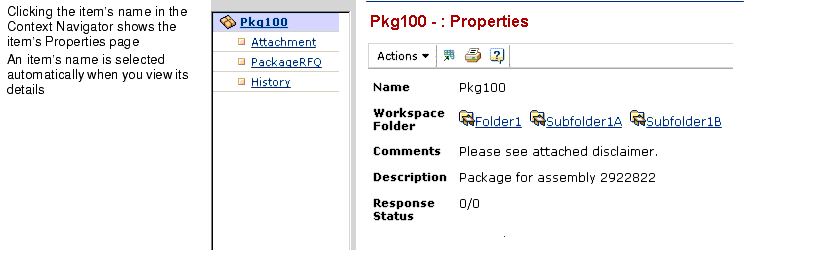
When you click the name of the item in the Context Navigator, the item's Properties page appears on the right. The Properties page shows the item's main attributes. The item's name is automatically highlighted when an item and its categories first appear in the Context Navigator, which is why the Properties page always shows first when you access an item's details.
One exception to clicking an item's name to view its Properties page is items that appear in the Structure Navigator, such as folders in Team Central and Program Central. For more information on working with structured items and the Structure Navigator, see Viewing Details for Items with a Hierarchical Structure.
|
|
|
|
| Last updated: 04/22/04 17:04:25 |