|
|
|
|
Some Item Details Appear in a Popup Window
The previous section describes what happens when you click the name of a "main" item on a table page: the item is added to the Context Navigator on the main application window. The item's Properties page replaces the table page from which you selected the item. There are cases when details for an item appear in a popup window instead of the main application window. In this case, the page from which you selected the item remains in the main application window.
When the Context Navigator is in a popup window, it behaves the same as when it is in the main application window. For example, items clicked from a category table are inserted under the category in the Context Navigator.
Item details display in a popup window and not in the application window when any of these conditions apply:
- The selected item is not a member of the category represented by the current table page.
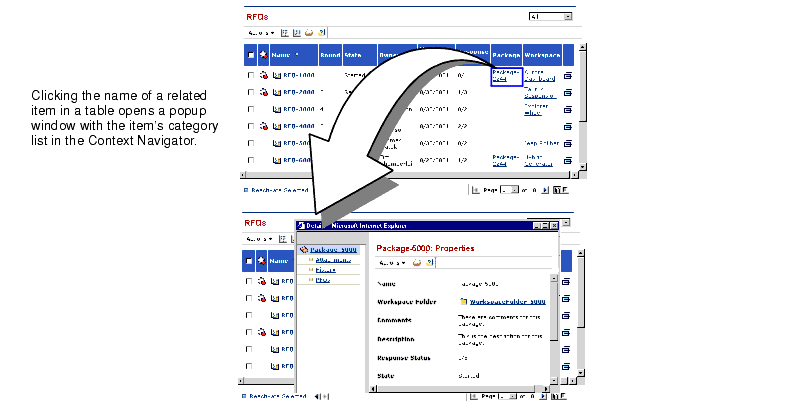
For example, when you click the name of an RFQ from an RFQs table page, the RFQ name and category list appear in the Context Navigator in the main application window. But RFQs pages also list packages and workspaces for the RFQs and you can click their names to see details. The packages and workspaces are not the main items in the table and are merely associated items for the RFQs. So when you click the name of a package or workspace, their details display in a Context Navigator in a popup window, as shown below for a package.
- The selected item is not on a table page.
For example, many Properties pages list items related to the current item. For example, the Properties page for a part might list an associated ECR. If you click the name of the ECR on the Properties page, its categories appear in a popup window.
- The Popup
icon for an item in a table is clicked.
Most tables contain a column on the right side that contains a Popup icon for each item in the table. You can click this icon to display the item's details in a popup window instead of replacing the current table in the main application window. This is handy if you want to continue working on the current table and therefore don't want to replace it. You can also use it to compare details about two different items and to navigate multiple items.
|
|
|
|
| Last updated: 04/22/04 17:04:25 |