|
|
|
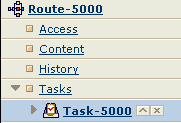
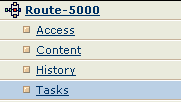
| Contract an item's category list or the list of viewed items under a category. For example, to contract the category list for Task-5000...
|
|
| Expand an item's category list or the list of viewed items under a category. For example, to expand the category list for Task-5000...
|
|
| Close an item's category list. For example, to close the category list for Task-5000... |
- Click
 to the right of the item name.
The item name and its category list are removed from the Context Navigator. The item is not deleted from the database or removed from the top-level item.
|
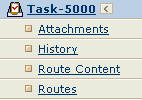
| Move an item to the top level of the Context Navigator, making it the root item for the Navigator. For example, to move Task-5000 to the top level of the Context Navigator and remove the route and its categories...
|
- Click
 to the right of the item name.
The item and its category list moves to the top of the Context Navigator. All items and category lists that were above the item are removed from the Context Navigator. A  appears next to the item's name, allowing you to return to the previous listing.
|
| Go back to the previous display of category lists. For example, to return to the category list for Route-5000 after moving a task to the top... |
|


 to the left of the item or category name.
 so you can expand it again.