|
|
|
|
Viewing Details for Items with a Hierarchical Structure
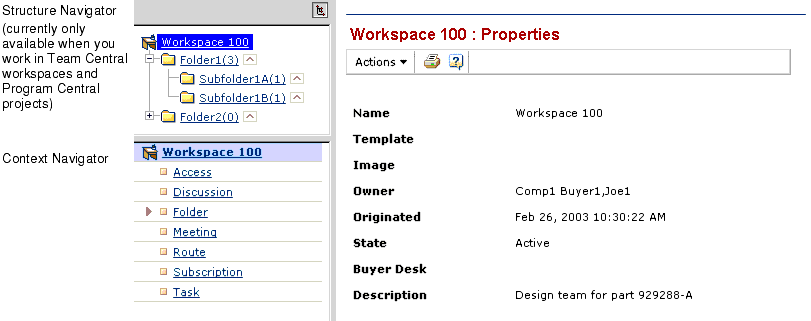
Some MatrixOne applications have items with a hierarchical structure, which we'll refer to as structured items. For example, workspaces in MatrixOne Team Central and projects in MatrixOne Program Central are hierarchical: they have folders, which can each have subfolders, and each subfolder can have subfolders and so on. When you view details for an item that has a hierarchical structure defined for it, you can view the hierarchical items in a Structure Navigator above the Context Navigator. The Structure Navigator contains only items within the defined hierarchy and displays only their names, not their categories, allowing you to quickly navigate to the pertinent items in the hierarchy.
For example, when you view details for a workspace in Team Central, the Context Navigator displays categories for the workspace as usual. In addition, you can display the Structure Navigator to see the names of the hierarchical items in the workspace, which are its folders and subfolders. Next to the name of folders and subfolders, the Structure Navigator displays a count of all content in the folder and the subfolders within it, not counting the subfolders themselves. This content count is a special feature for Team Central folders and subfolders and is not available for all structured items.
The Structure Navigator displays items in a Windows Explorer-like tree. You can expand and contract lists of items by clicking + and - signs. The lists update as you work in the application. For example, when you add a folder, it is added to the Structure Navigator.
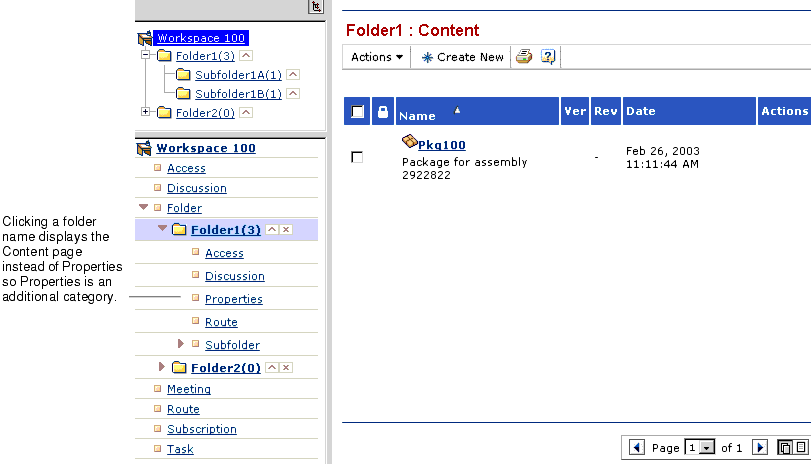
When you click the name of a structured item in either Navigator, the main table page for that type of item displays on the right.
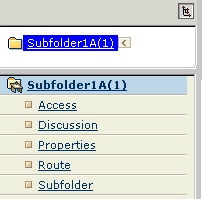
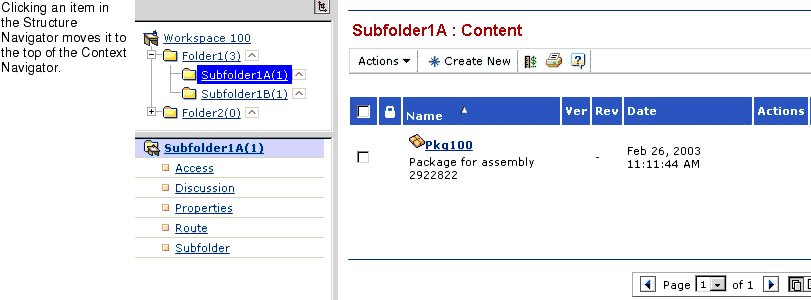
The items you select in the Structure Navigator are similarly selected in the Context Navigator but the reverse is not true. Selecting items in the Context Navigator has no affect on the Structure Navigator. For example, when you click a subfolder name in the Structure Navigator, the Contents page for the subfolder displays on the right and the subfolder and its category list are listed at the top of the Context Navigator. This lets you quickly see the most pertinent information about the folder (its content) and gives you easy access to related information for the folder (its categories).
Like the Context Navigator, you can move items to the top of the Structure Navigator and then use a Back arrow to return to the previous item list. When you move an item to the top of the Structure Navigator, it also moves to the top of the Context Navigator.
This table summarizes steps for navigating within and managing the Structure Navigator. Note that you can also resize the height of the Structure Navigator by dragging the border between the two navigators.
|
|
|
|
| Last updated: 04/22/04 17:04:25 |
 in the upper right corner of the Navigation pane.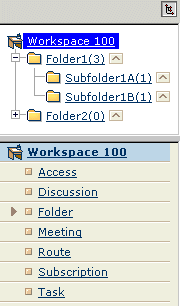
 to the right of the item name.
 appears next to the item's name, allowing you to return to the previous listing.