|
|
|
|
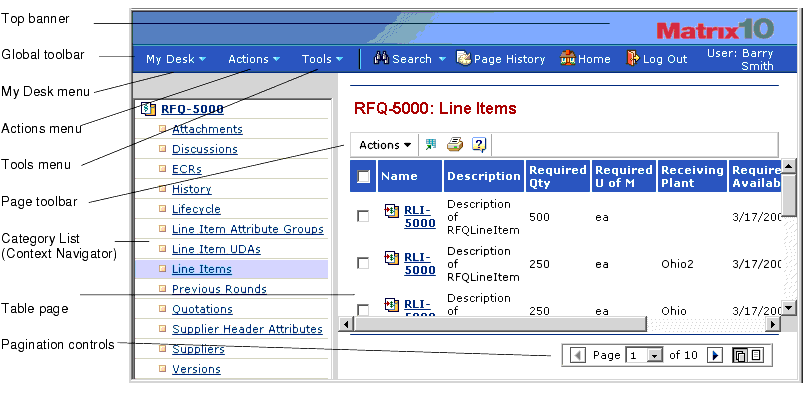
Overview of the MatrixOne Applications Window
This section describes the main elements within the MatrixOne applications window.
Global Toolbar
The global toolbar shown at the top of MatrixOne applications contains tools that are independent of the page or option you are currently working with. It holds top-level menu items: the My Desk, Actions, and Tools menus, which have drop downs; and Search, Page History, Home and Logout buttons. The following table explains these items:
My Desk Menu
The My Desk menu provides access to features that are common to all applications and also contains a submenu for each application that you have access to. Each submenu contains links for items that are important to you, based on the roles you are assigned. Clicking most links on the menu presents a list of items that you are responsible for or need to address in some way. For example, buyers can click the Buyer Desk link in the Sourcing submenu to see the Buyer Desks they are assigned to.
Actions Menu
The Actions menu is divided into submenus for each application. These submenus contain options for performing actions that are not dependent on a selected item or the current context. For example, the Engineering submenu on the Actions menu contains a list of Create actions for Engineering Central objects and a link to run a metrics report. The actions that are listed depend on the roles assigned to you.
The options on the Actions menu are also on pages within the applications. For example, the Create RFQ link is also on the RFQs page, which opens when a buyer clicks RFQs from Sourcing's My Desk menu.
Because you usually work within the context of a particular business item (buyers work on bid lists for a particular RFQ, suppliers enter bid data for line items in a particular quotation, Design Engineers work on particular parts or ECRs, etc.), the links for most actions appear on pages that pertain to a particular item or set of items and not on the Actions menu. For example, one action buyers can perform in Sourcing Central is to cancel an RFQ, but the buyer must first select an RFQ to cancel. Therefore, the link for canceling an RFQ is on the RFQs page, which lists all RFQs for the company.
Tools Menu
The Tools menu contains items that apply to MatrixOne applications in general. The following table lists the contents of the Tools menu.
Table Pages
Much of the information shown in the MatrixOne applications is presented in tables. Clicking links from the My Desk menu displays a list of items shown within a table. Clicking most categories in the Context Navigator also displays a page with items in a table. Table pages show summary information about the items, let you select and work with the items, and let you click an item name to get more information about the item. Many table pages contain an Actions menu that contains commands relevant to the data in the table, such as Create New, Add Existing, and Edit Details.
For more information about table pages, see Using Table Pages.
Context Navigator
The Context Navigator shows categories of information about an item when you click the name of the item. For example, the Context Navigator shows Access, Content, Tasks and Discussions categories when you click the name of a route. When clicked, most categories show a table that lists items in the category. When you click the name of one of these items, the category list for that item is inserted into the Context Navigator, under the appropriate category. As you view related items, the items and their category lists continue to insert into the original category list. Inserting items into the Context Navigator lets you navigate to related information without losing track of the current context.
For more information about using the Context Navigator, see Getting More Information about an Item (Using the Context Navigator).
Page Toolbar
The page toolbar contains tools that apply to the current page. Page toolbars can contain any of these tools.
|
|
|
|
| Last updated: 04/22/04 17:04:25 |