Previous Document Next Document Show Current Location in Contents

Using Table Pages

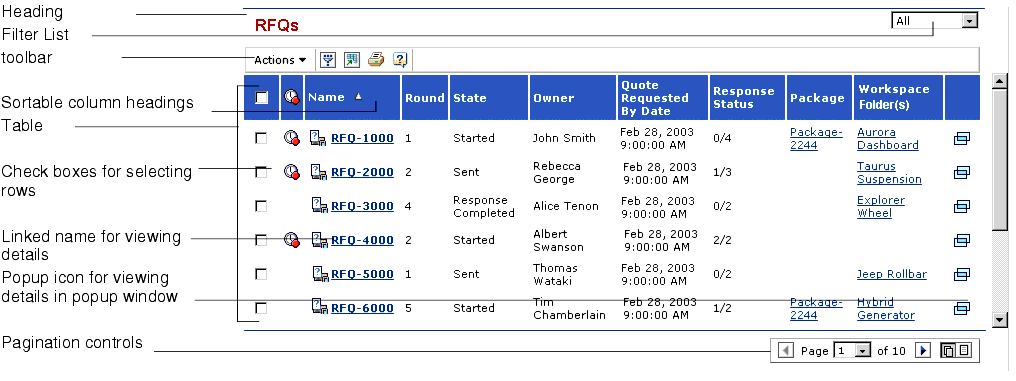
This graphic shows the main components of a table page. Each component is described in the table that follows.


Table Component
Description
For more information, see:
heading
Every table page has a heading that describes the content of the table. In the graphic shown above, the table contains a list of RFQs. In some cases, the content may be a list of items for a particular item. For example, a table might contain a list of line items for a particular RFQ. In this case, the heading would contain the table content, "Line Items", preceded by the name of the RFQ.
filter list
Some table pages contain a drop-down list in the upper right corner that lets you filter the displayed list. For example, buyers can use the filter list on the RFQs page to see only the RFQs they own or co-own, that have been routed to them, or that are in workspaces they belong to.
toolbar
The menus in the toolbar for a table page let you perform actions that are related to the items in the table or to the page topic in general.
sortable column headings
You can sort tables based on a column by clicking that column's heading.
table
The table is a list of related items and attributes about each item. Most tables contain check boxes that let you select multiple rows to work on or buttons that let you select one row to work on. You can access details about an item in a table by clicking the Name of the item or clicking the Popup icon.
pagination controls
The pagination controls let you scroll to additional rows when the table takes up more than one page. You can also use the controls to turn off pagination, listing all rows on a single page.

Previous Document Next Document Show Current Location in Contents

Last updated: 04/22/04 17:04:25